
How to Use
Mess Ledger
A complete visual walkthrough of every feature — from calculating your first mess to managing your account settings.
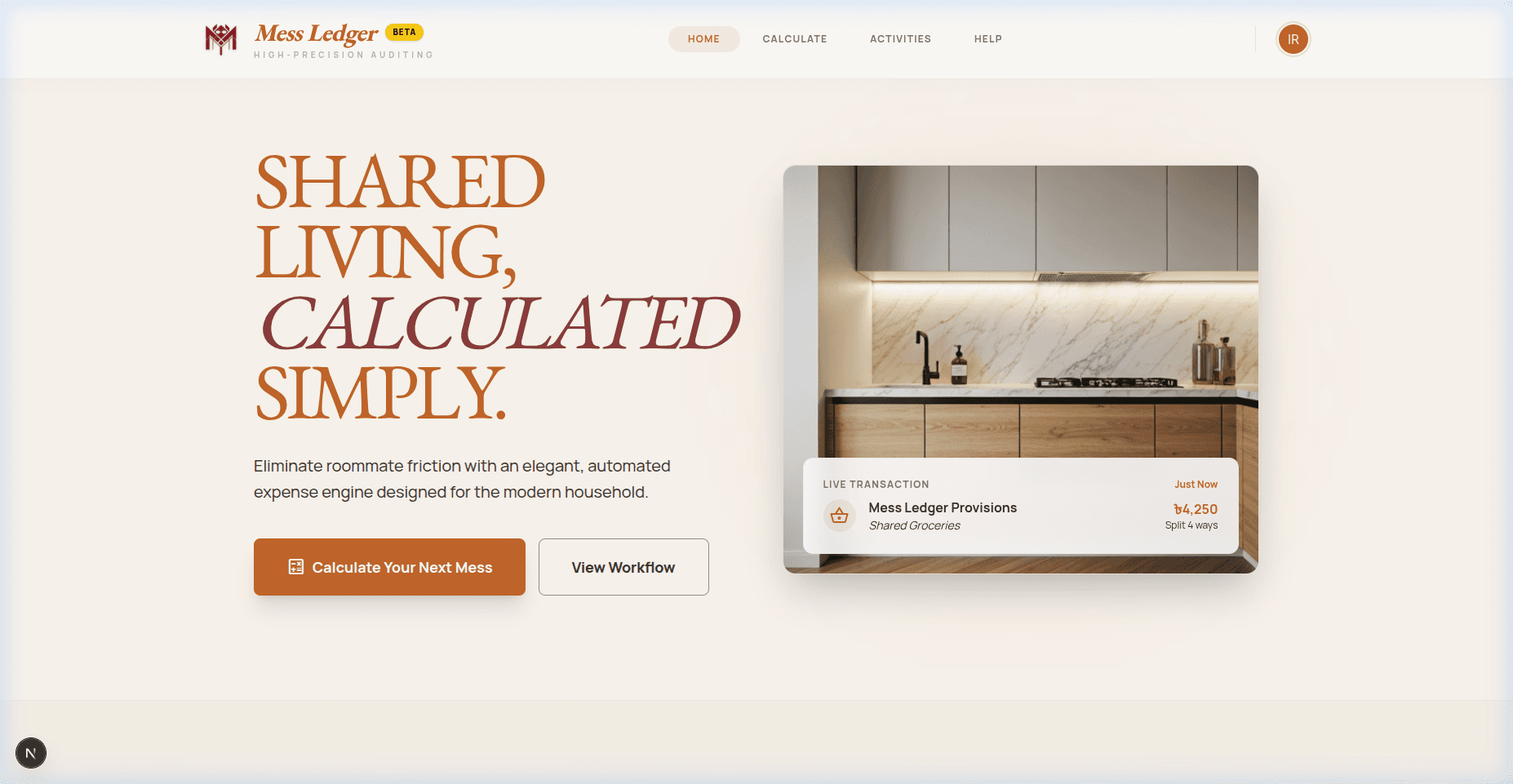
1. The Landing Page
The landing page is your gateway. From here you can jump straight into calculating a new mess, or explore how Mess Ledger works.
Step-by-Step
Calculate Your Next Mess
Click this button to go directly to the Data Entry Hub — the fastest way to get started.
View Workflow
Scrolls down the landing page to show you a step-by-step overview of how Mess Ledger works.
Navigation Bar
The top nav gives you access to Home, Calculate, Activities, and Help at any time.
Avatar / Login
The top-right avatar shows your initials if logged in. Click it to go to the Dashboard.
💡 Pro Tips
- You do not need an account to run a quick calculation.
- The live transaction card is an animated preview of a real mess split.
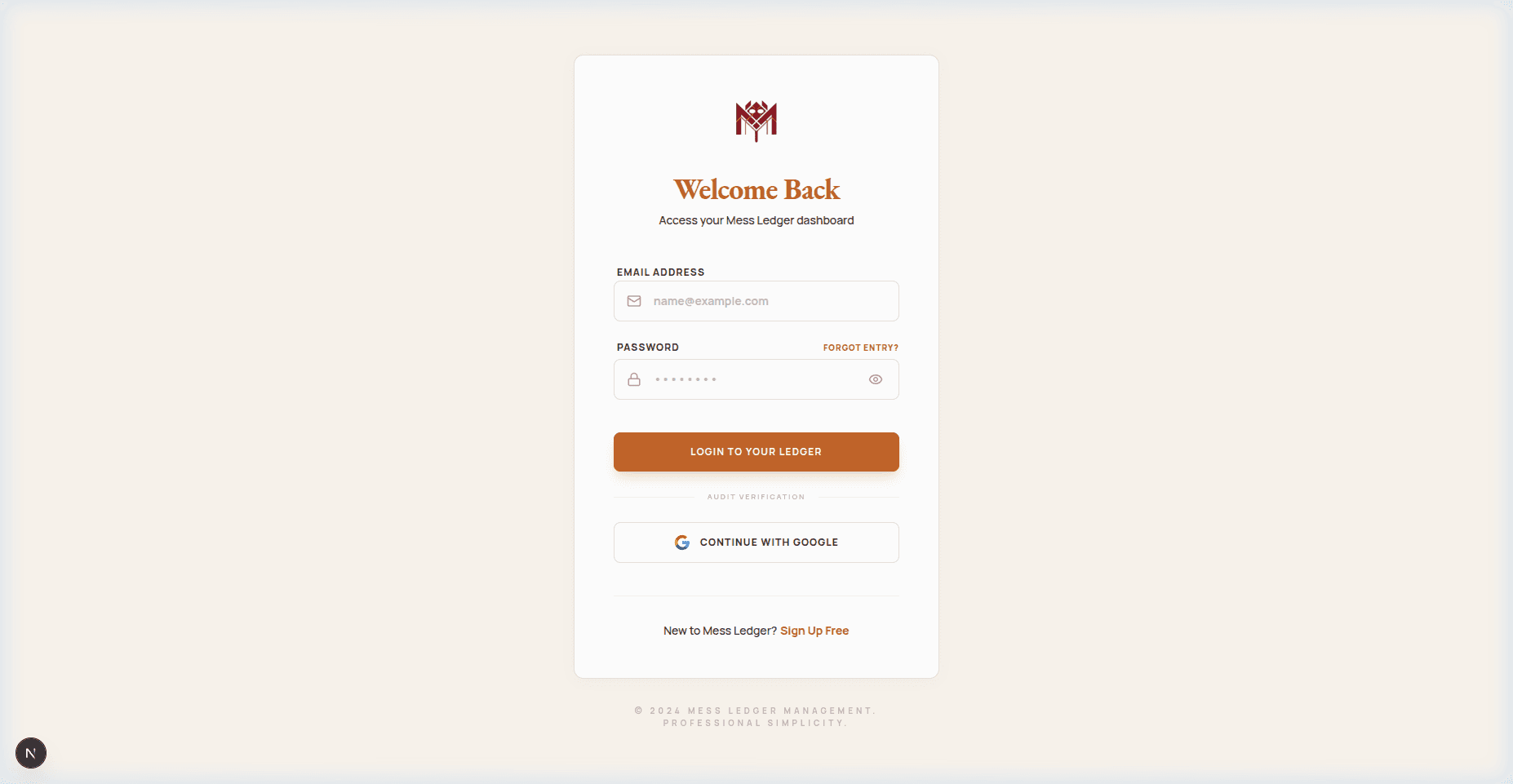
2. Signing In
Sign in to your account to save your calculations, view your history, and access your personal dashboard.
Step-by-Step
Email Field
Enter the email address you registered with.
Password Field
Enter your password. Use the eye icon to toggle visibility.
Sign In Button
Click to authenticate. You will be redirected to the Dashboard on success.
Google Sign-In
Use "Continue with Google" to log in instantly using your Google account — no password needed.
Register Link
If you don't have an account yet, click "Create an account" at the bottom.
💡 Pro Tips
- Passwords must be at least 8 characters.
- If you forgot your password, contact support — a reset flow is coming soon.
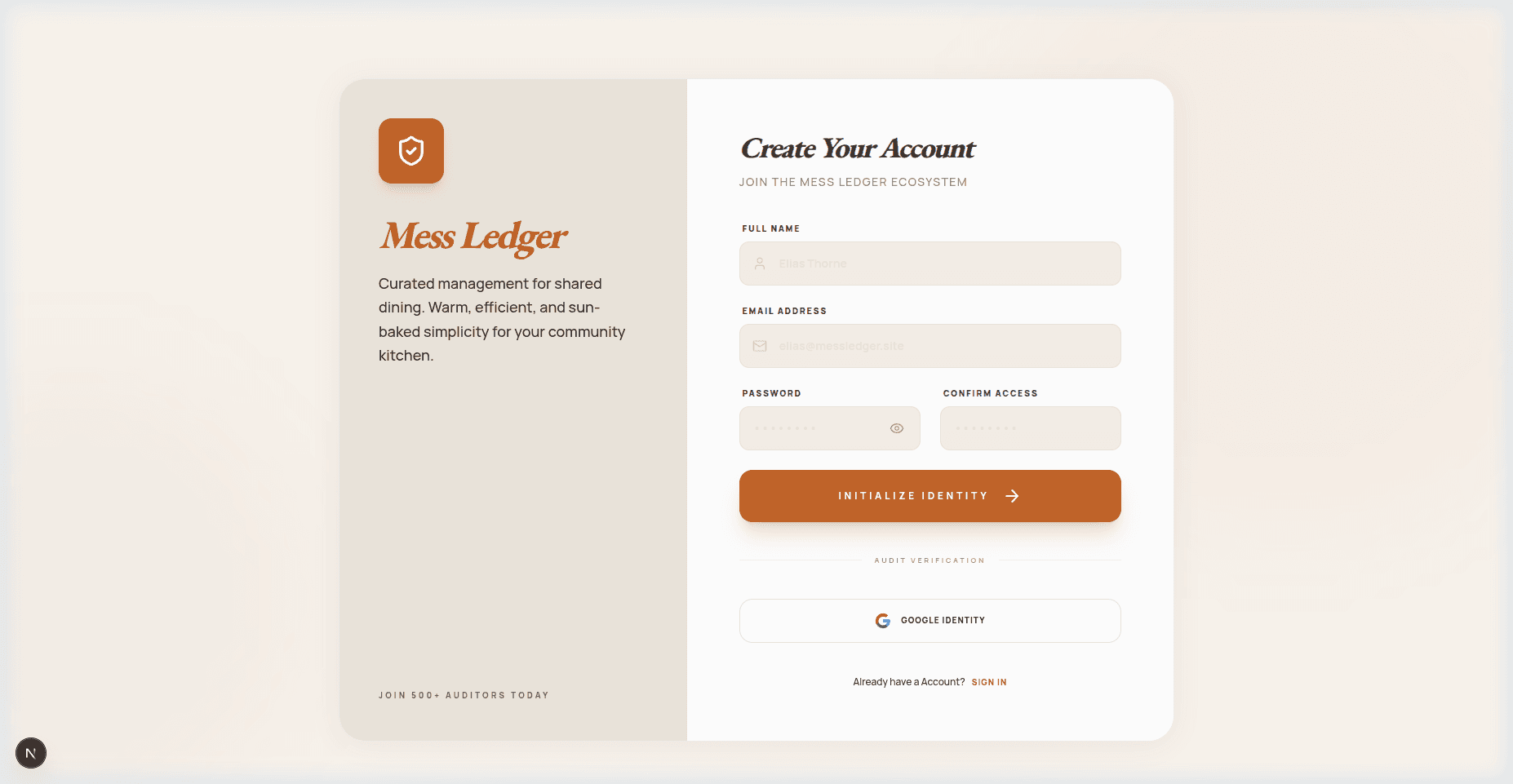
3. Creating an Account
Registration is quick. You need a name, email, and password. An OTP will be sent to your email to verify your account.
Step-by-Step
Full Name
Enter your real name (3–50 characters). This appears on your Dashboard and reports.
Email Address
A valid email address — this is your login ID.
Password
Choose a secure password of at least 8 characters.
Create Account
Clicking this sends an OTP to your email for verification.
OTP Verification
Enter the 6-digit code from your email in the verification modal that appears.
💡 Pro Tips
- Check your spam/junk folder if the OTP email doesn't arrive.
- You can also sign up instantly with Google without needing an OTP.
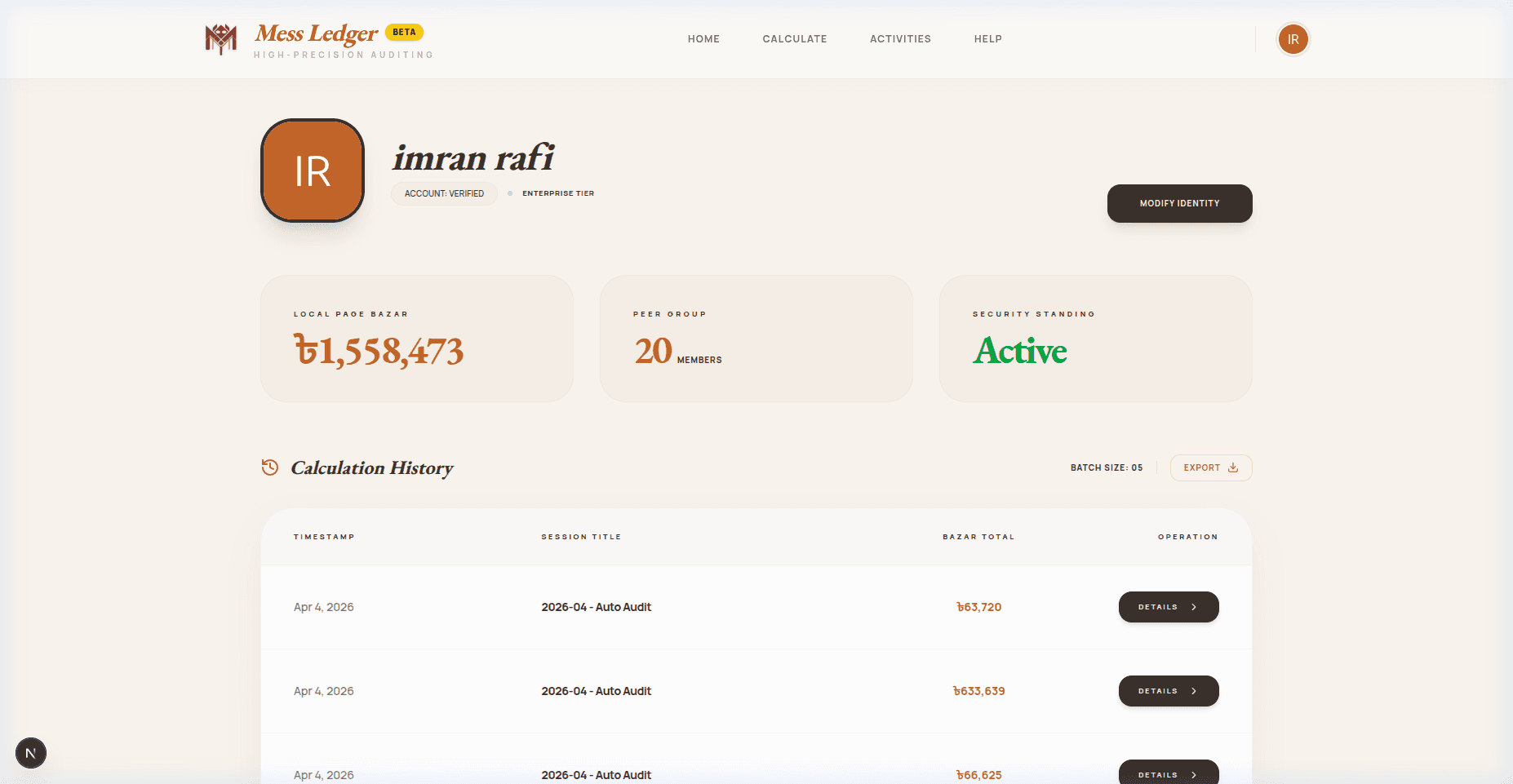
4. Your Dashboard
The Dashboard is your personal audit control center. It shows your total spending, peer group size, security status, and your full calculation history.
Step-by-Step
Profile Header
Shows your name, verified status, and account tier.
Local Page Bazar
Your cumulative total BDT spent across all saved mess sessions.
Peer Group
The total number of unique members across all your mess calculations.
Security Standing
Confirms your account is active and in good standing.
Calculation History
Table of all your saved sessions — timestamp, title, total, and a Details button.
Details Button
Click Details on any row to see the full breakdown of that specific mess calculation.
Export
Export your calculation history as a file for record-keeping.
Modify Identity
Navigate to Settings to change your name or password.
💡 Pro Tips
- The dashboard paginates 5 records at a time — scroll down to see the pagination controls.
- Your data is saved automatically every time you submit a calculation.
5. Running a Calculation
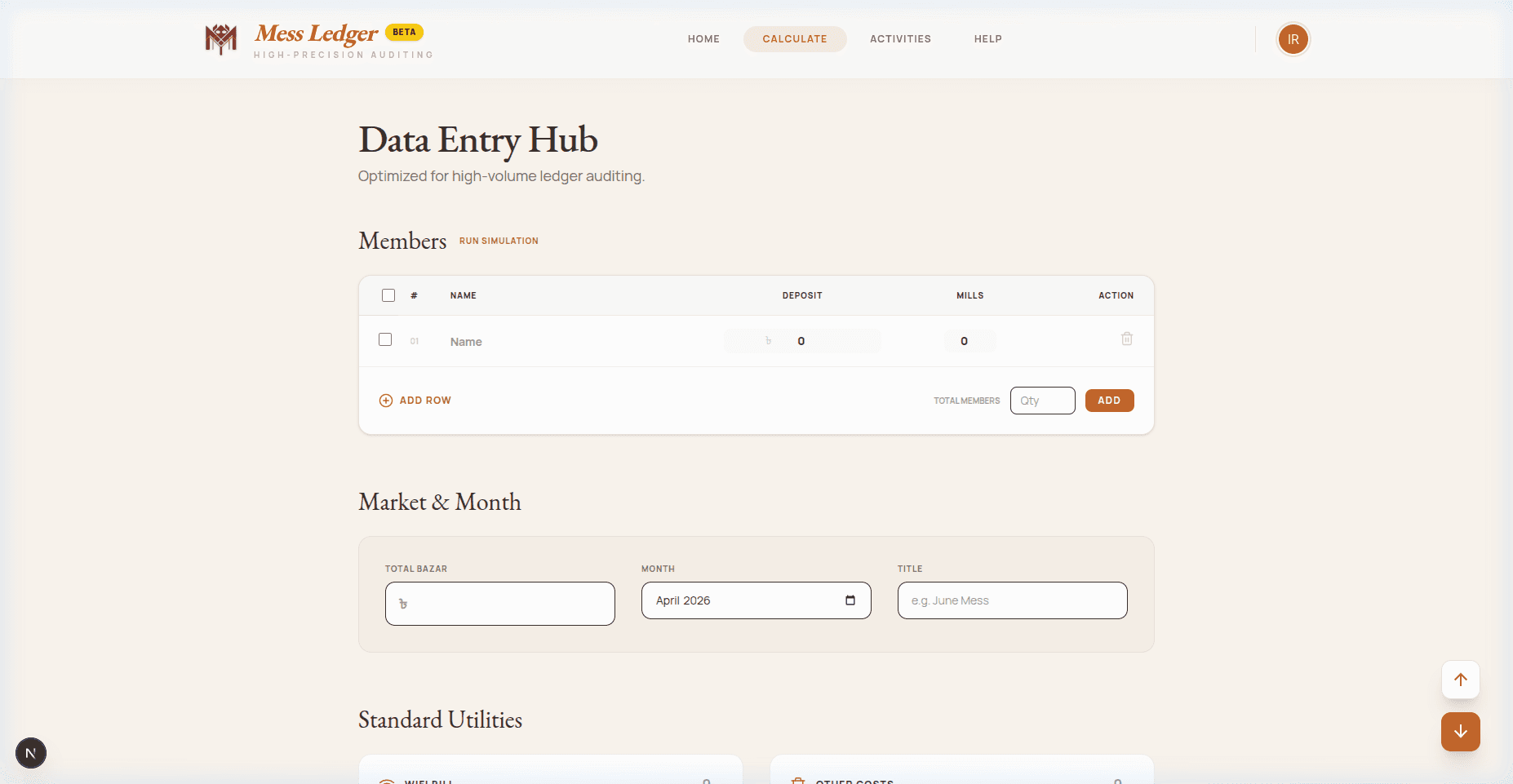
The Data Entry Hub is where the magic happens. Enter your members, market costs, and utilities — and Mess Ledger calculates exactly what each person owes.
Step-by-Step
Members Table
Add each member's name and their individual deposit (if any). Use "+ Add Row" to add more members.
Total Members Qty
Enter the total number of members and click ADD for quick bulk member generation.
Run Simulation
Click "RUN SIMULATION" to auto-generate a realistic demo dataset for testing.
Total Bazar
Enter the total market cost for the month in BDT (৳).
Month
Select the month this calculation covers — used for the session title.
Title
Give this session a name (e.g., "June Mess"). Auto-filled if left blank.
Standard Utilities
Enter shared bills: WiFi, electricity, other costs. These are split equally.
Submit / Calculate
Hit the Calculate button at the bottom. Results appear instantly on screen.
Save to Dashboard
After calculating, you can save the session to your Dashboard history.
💡 Pro Tips
- Leave deposits as 0 if nobody paid in advance.
- The "Mills" column tracks how many meals each member consumed.
- You can delete rows with the trash icon on each member row.
6. Global Activity Feed
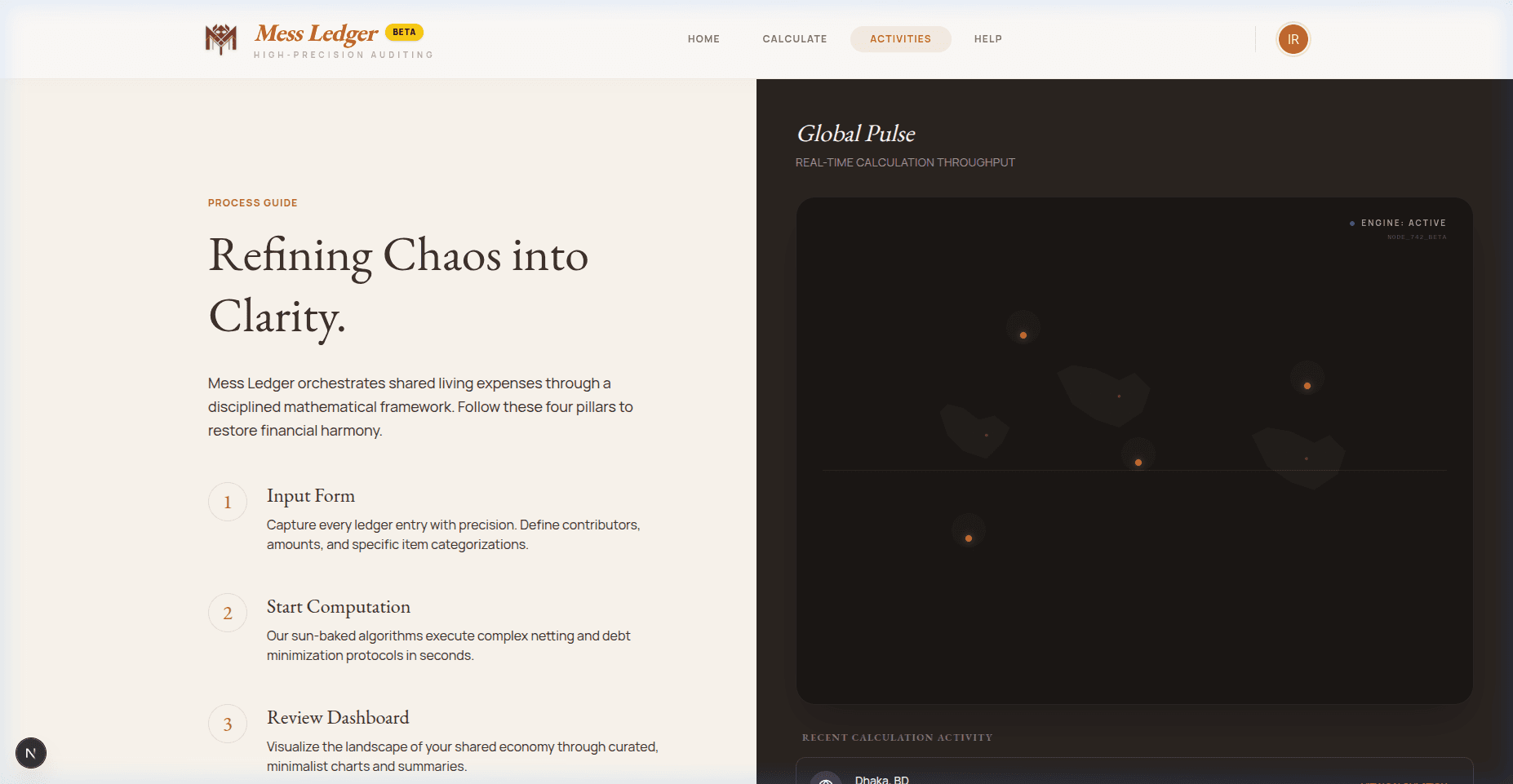
The Activities page shows a live global pulse — all recent calculations submitted by all users on the platform.
Step-by-Step
Live Transactions
Displays recent mess calculations from all users in near real-time.
Session Cards
Each card shows: session title, total bazar, member count, and the month.
Browse & Discover
Get a feel for how other households are using Mess Ledger.
💡 Pro Tips
- This is a read-only view — you cannot interact with other users' sessions.
- Your own sessions will appear here too after saving from the Calculate page.
7. Settings & Account
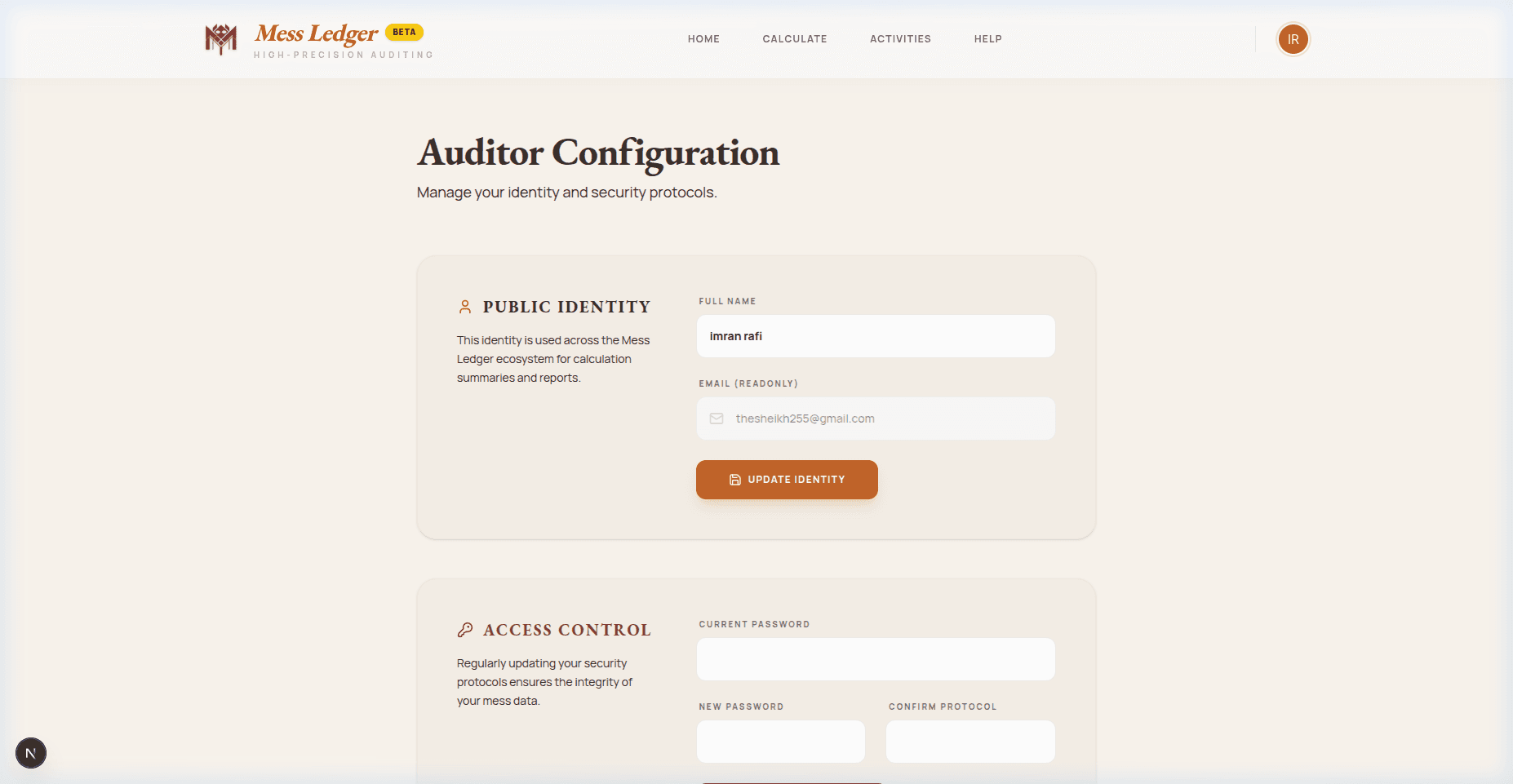
The Settings page lets you manage your public identity, update your password, and sign out of your account.
Step-by-Step
Public Identity
Update your display name. This appears on your Dashboard and all reports.
Email (Read-Only)
Your registered email cannot be changed from here.
Update Identity
Click "Update Identity" to save your new name.
Current Password
Enter your existing password before setting a new one.
New Password & Confirm
Enter and confirm a new password (minimum 8 characters).
Update Protocol
Click to apply the new password. You will remain logged in.
Sign Out
Securely destroy your session and return to the landing page.
💡 Pro Tips
- Changing your password does not log you out automatically.
- Use the Sign Out button to fully clear your session from this device.
Frequently Asked Questions
Quick answers to the most common questions about Mess Ledger.
Ready to Start?
Jump into the calculator and run your first mess in under a minute.